
update - collect payments in your forms with the new payment type field

Published On:
April 28, 2026
This article is about using the Auto Navigation feature in multi-step forms. Using this feature, one can easily navigate from one step to another without having to click on the Next button.
Auto-navigation is used in single-select type questions, where you can go to the next step of your form just by clicking on the choice without even having to click on the Next button.
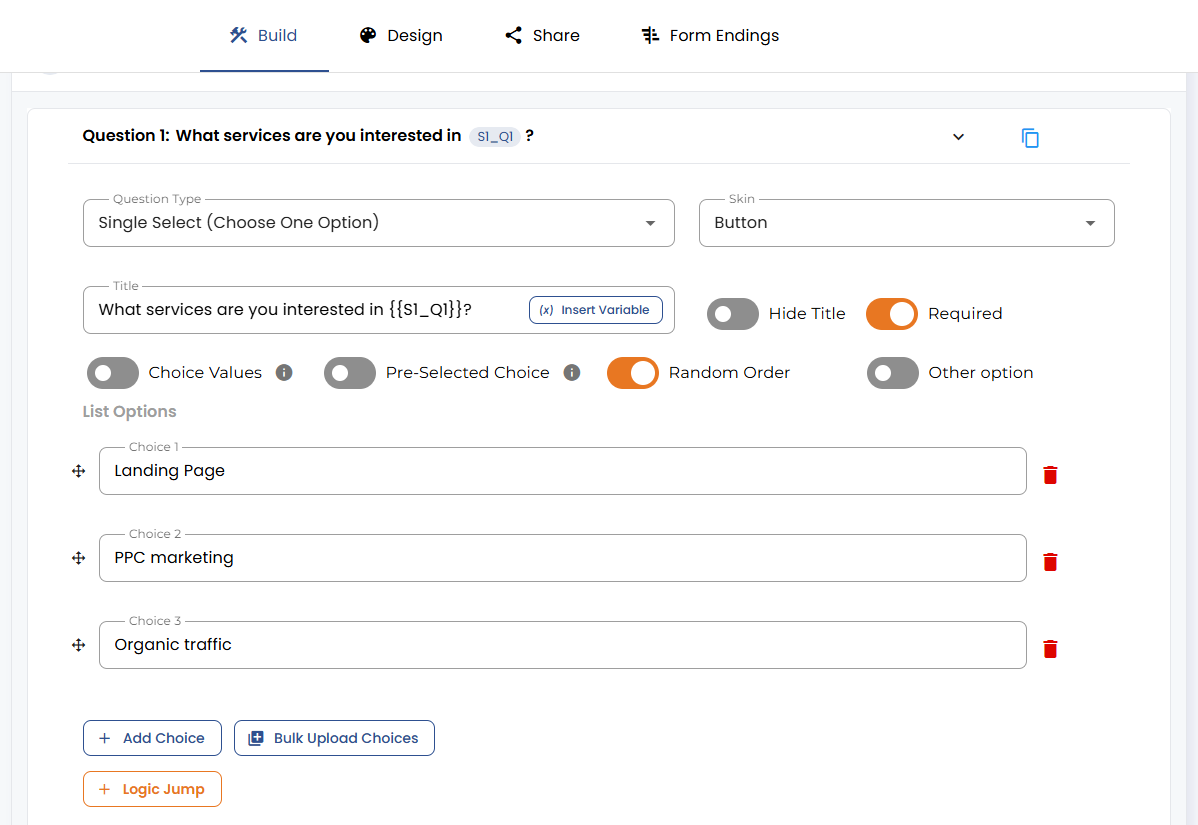
Add a single-select type question in your form.
Turn on the Auto Navigation toggle.
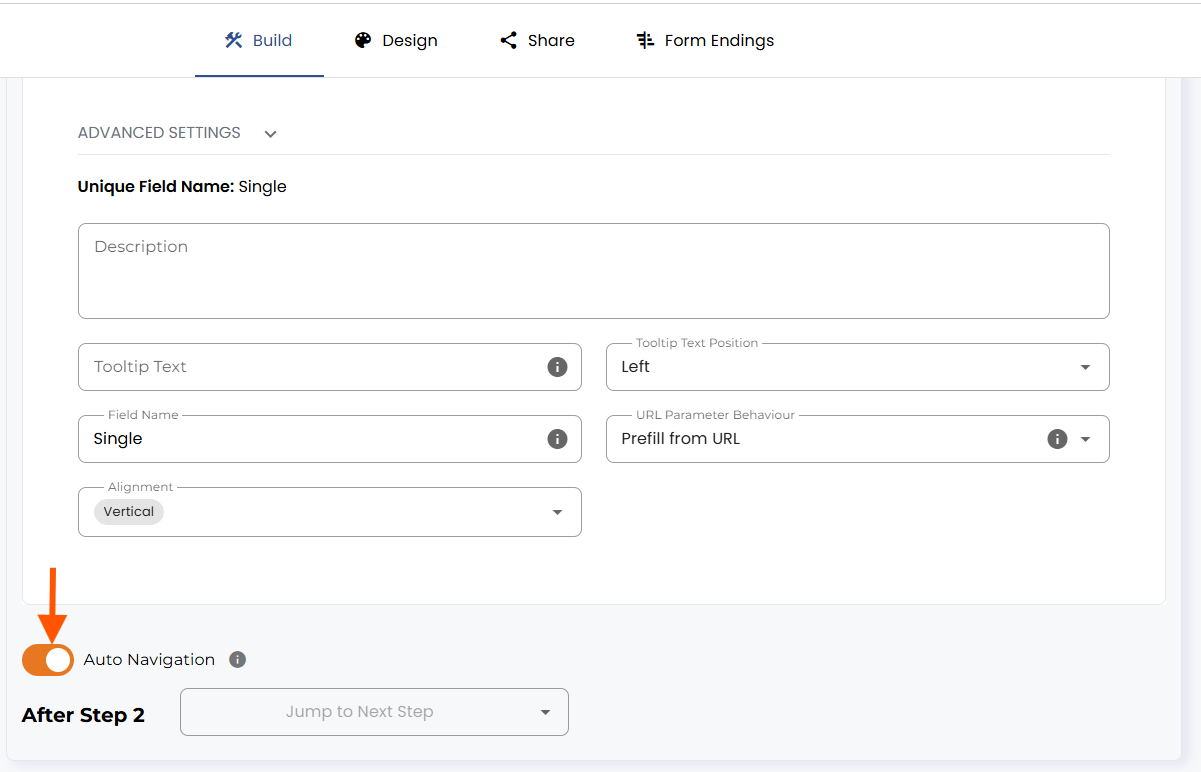
Auto Navigation is now enabled for your form.
Auto Navigation can be used in combination with the Continue Button Visible setting. Turning this setting off disables the continue button while still keeping it visible on the first step, so you know there is another step after it.
In the Design section, go to Step Navigation. Now go to Continue Button Default Appearance, and at the bottom of the page, you will find the Continue Button Visible setting.
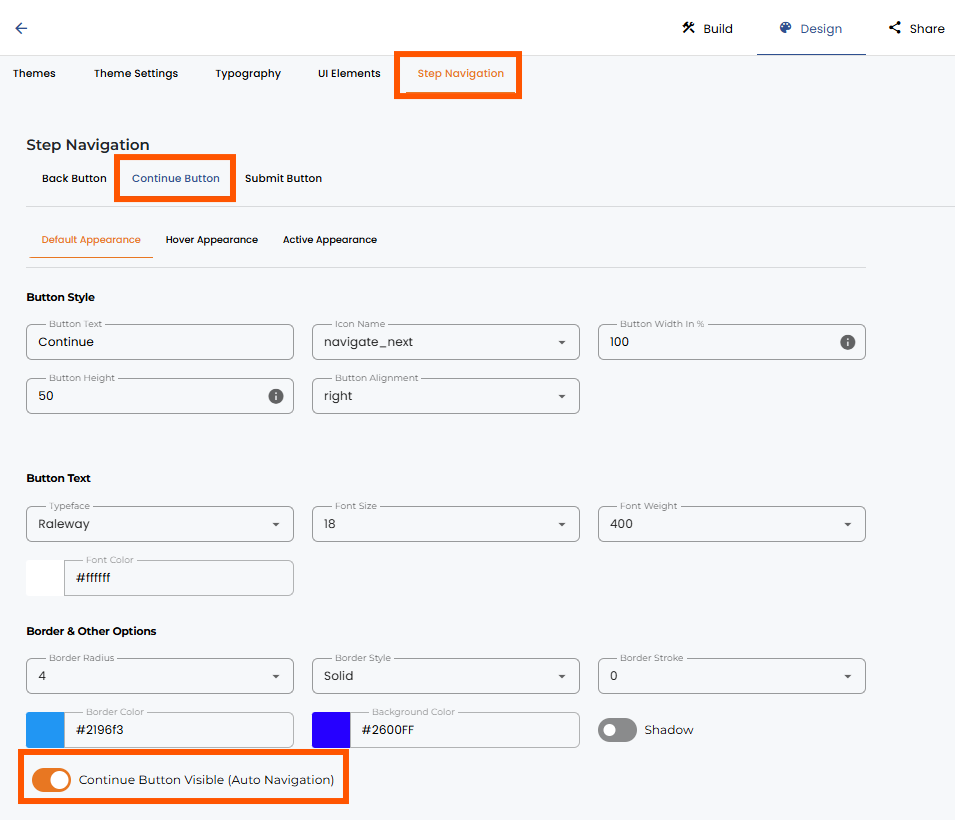
Turn the toggle off to disable the continue button.
You can also combine the auto-navigation setting with the back button, visible or invisible.
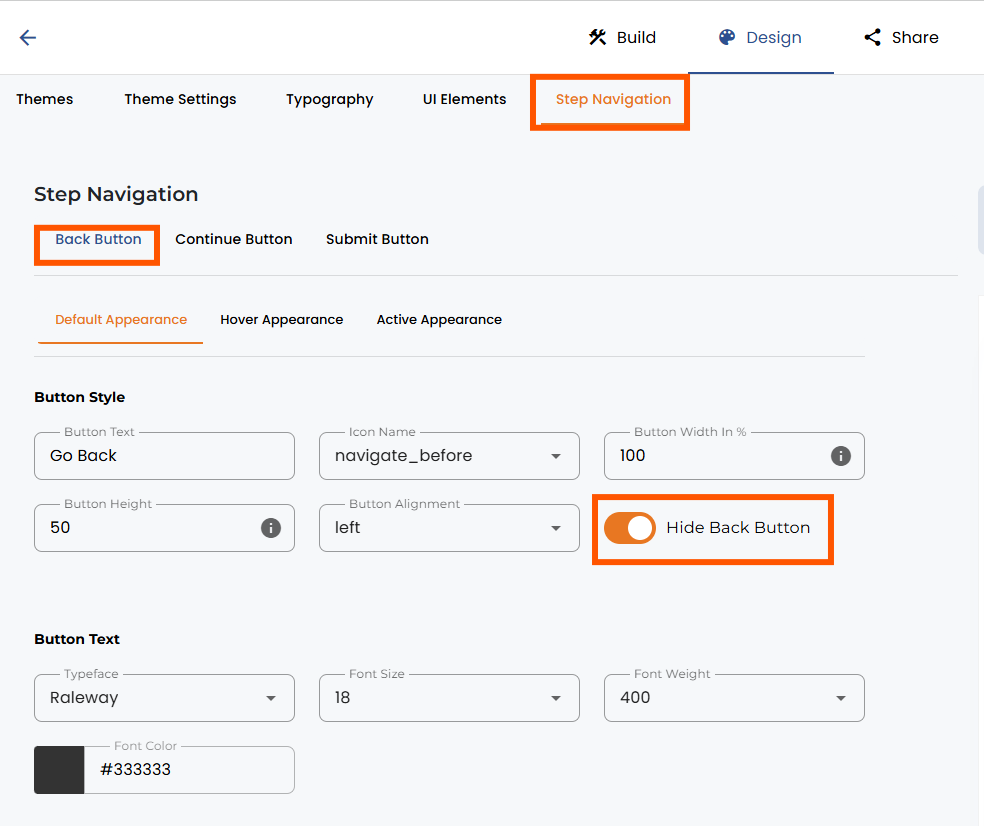
Here is how to hide the back button if you do not want your users to go back to the previous steps.
In the Design section, go to Step Navigation. Now go to the Back button Default Appearance and use the Hide Back Button setting to hide or show the the back button to your users.
Note: The Auto Navigation feature can be used only when there is at least one more step after a single-select type question.


.png)
