
update - collect payments in your forms with the new payment type field

Published On:
April 30, 2026
Send your leads to a message or custom URL after form submission.
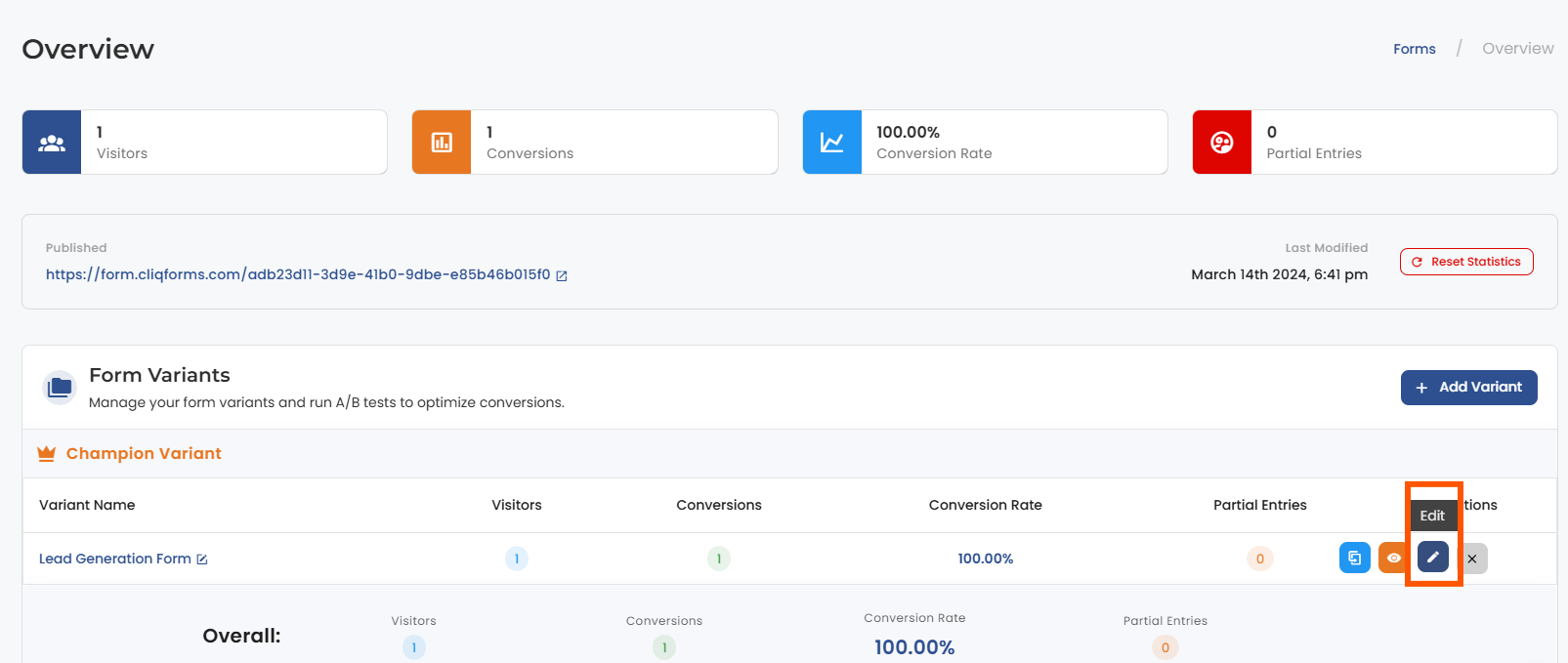
While on the form overview page, click on the form preview icon, as shown in the screenshot below. Afterward, send the submission and see the current version of the thank you page.
You will see the following message appear after you submit the form:

Open the form and go to the “Form Endings” tab.

In the “Form Endings” page, click on the edit icon of the “default than you page” . Go to the “Submit Actions” field. Here is where you can edit the message on the thank you page.

Continue by editing the text editor with your custom "thank you” message. Make sure you get the most out of the available formatting options and make the message stand out, e.g., by making the text bold or adding a link.
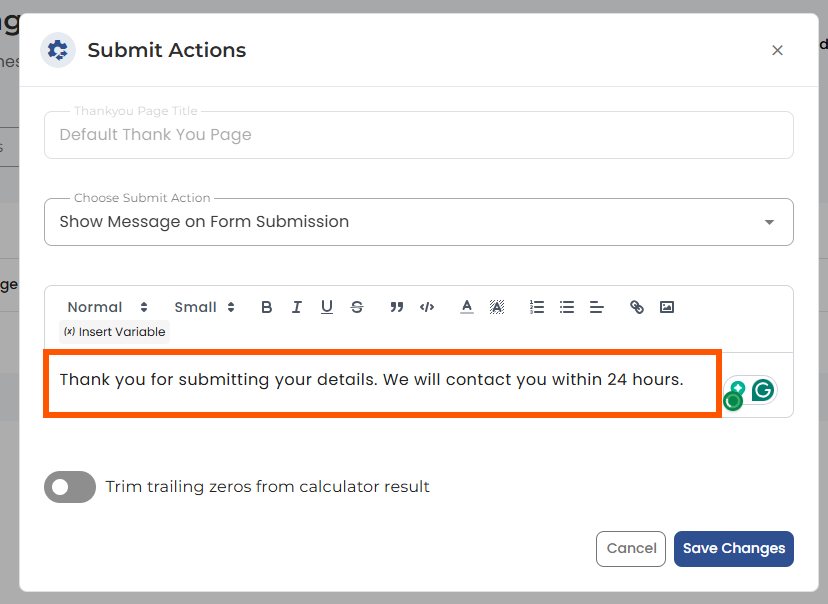
Hit the Save button when you are finished with editing.
Here’s how the Thank-you message will now appear in the live form:

To link to a custom URL instead of a message, go to the Thank you message and select “Go to URL ” in submit actions. Enter the URL and hit the save button,

Use the following URL formats:
https://testwebsite.com or https://www.testwebsite.com
Submit the form once again to see the redirect to the new URL, which you’ve just added.


.png)
