
update - collect payments in your forms with the new payment type field, now includes Paypal

Published On:
April 23, 2026
Capturing UTM (Urchin Tracking Module) parameters is essential for accurately tracking the effectiveness of your marketing campaigns. By following this step-by-step tutorial, you’ll learn how to set up and test UTM parameters, ensuring you gather detailed insights about the traffic sources to your website.
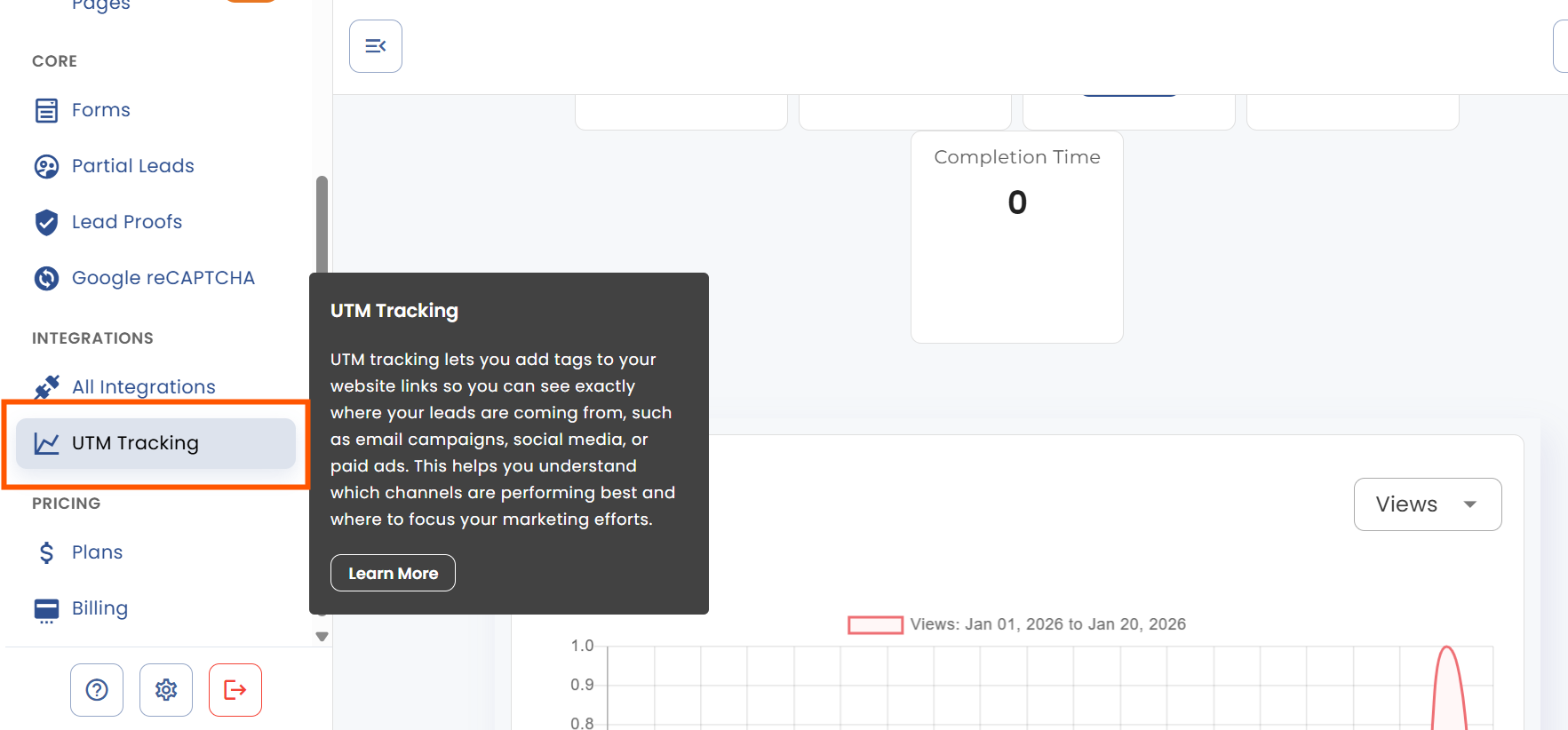
Access UTM Parameters: Go to the side navigation bar in your platform’s dashboard and click on UTM Parameters.
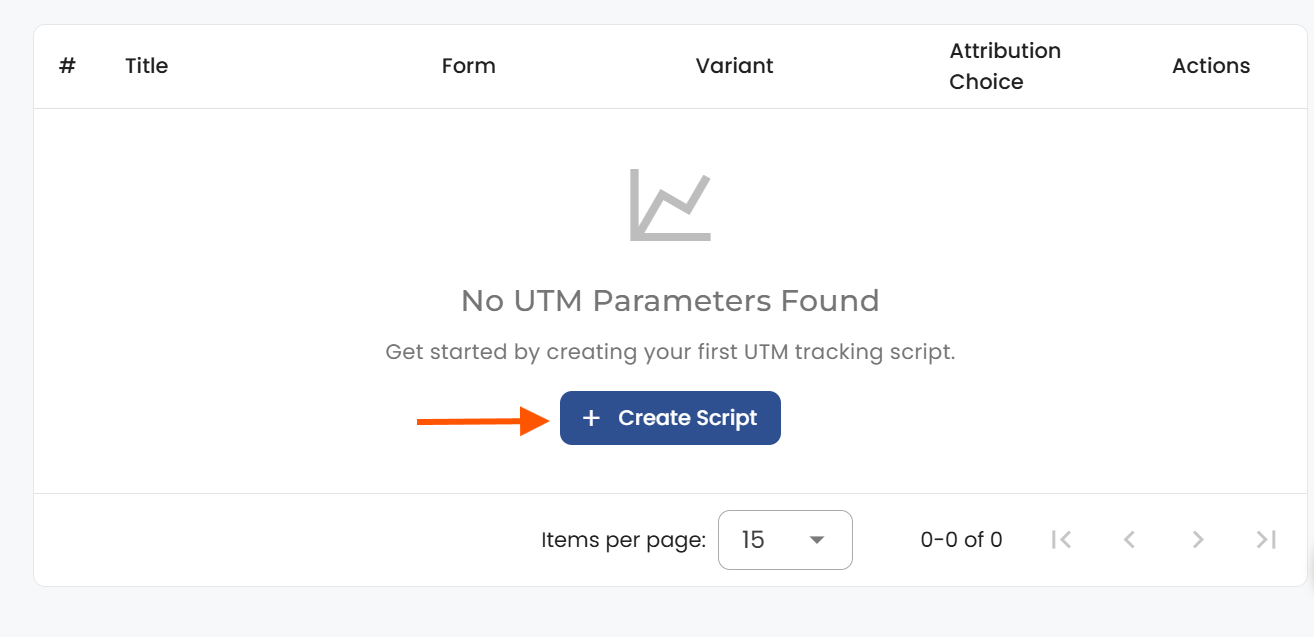
Add New Parameter: Click on the “Create Script” button to open the UTM parameter configuration form.
Configure Your Parameter:
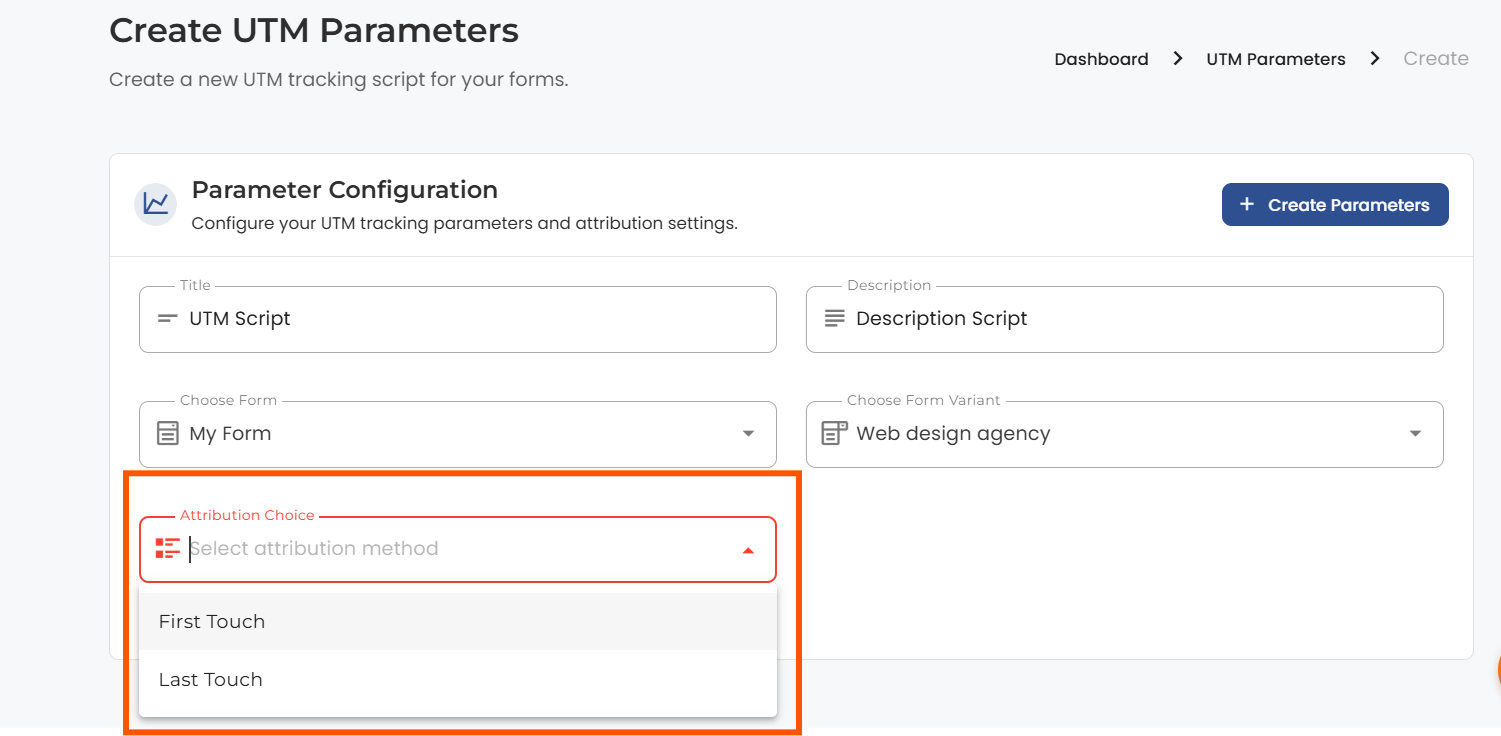
Save: Click the “Create Parameters” button to finalize and save your UTM parameter setup.
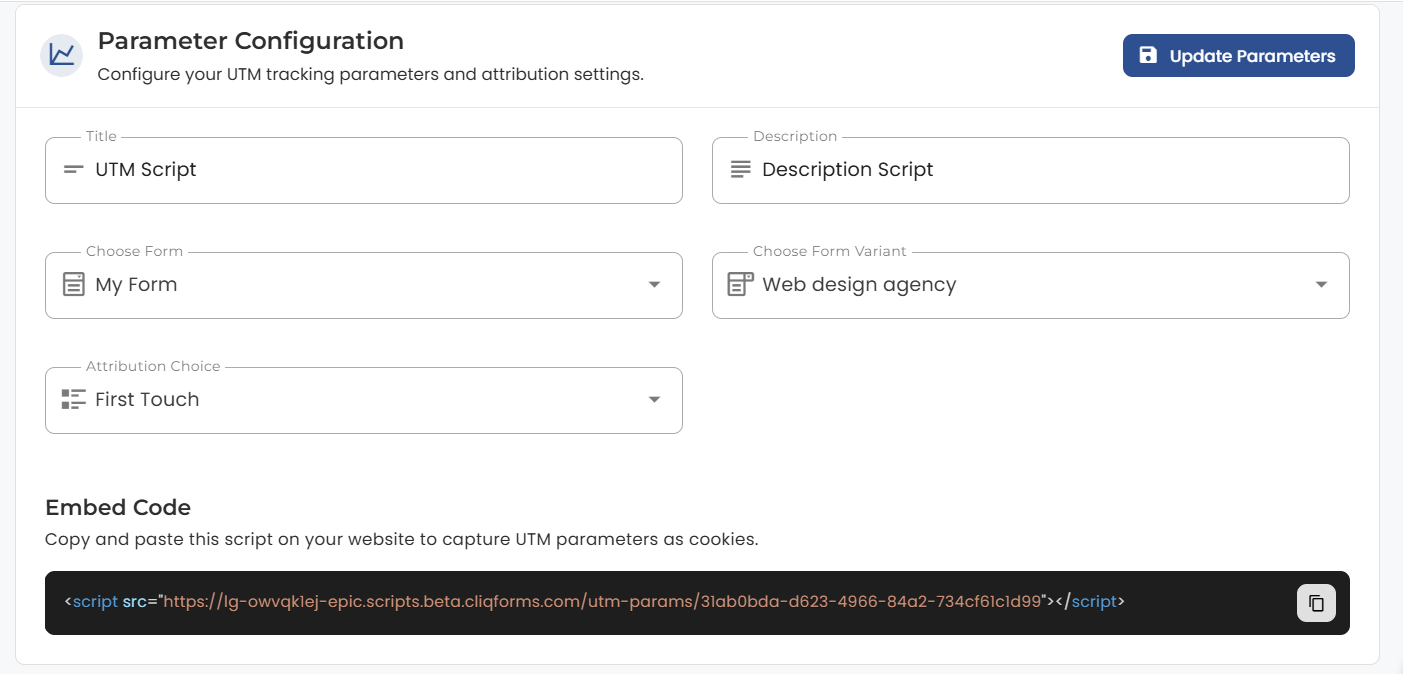
Once you have configured your UTM parameters and selected an attribution model:
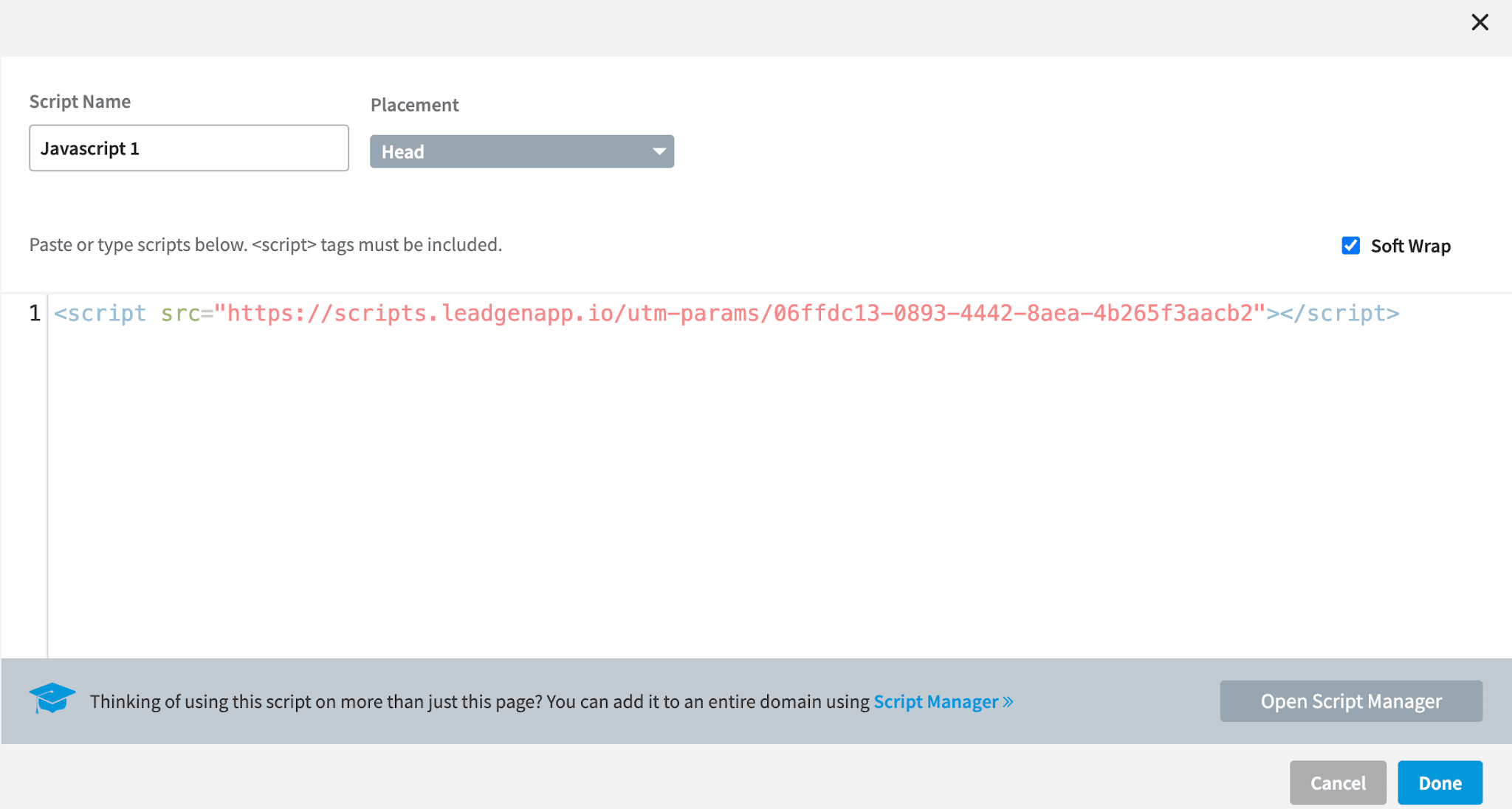
Copy Script: A script will be generated at the top of the page. Copy this script.
Embed Script: Embed the copied script within the <head> tag of your landing page, specifically on the page where your form is embedded. This step ensures the UTM parameters are captured correctly when visitors interact with your site.
To ensure your setup is capturing UTM parameters correctly:
Initial Visit Test: Use a URL with specific UTM parameters to visit your landing page/website, then leave the page. This action tests the capture of initial visit data based on your configured UTM parameters.
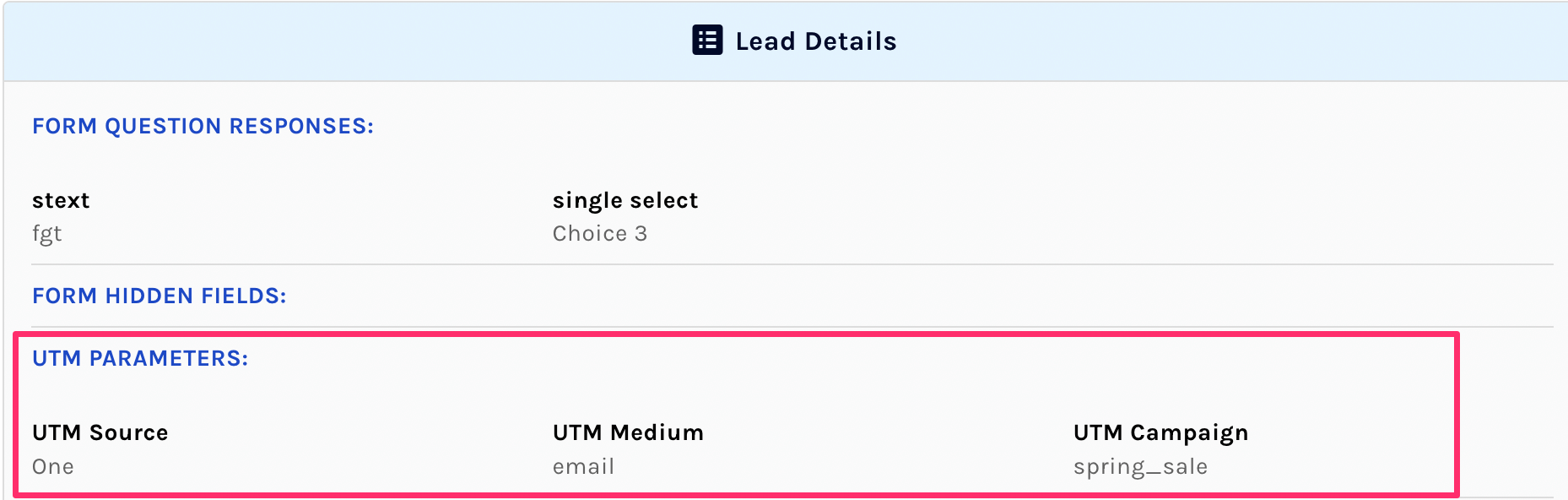
Verify Captured Data: Check the leads section of your platform to verify that the correct UTM parameters have been recorded according to your chosen attribution model (First Touch or Last Touch). Ensure the data matches your expectations and the parameters you’ve set.
By following these steps, you’ll have a reliable setup for tracking UTM parameters, allowing for accurate attribution and analysis of your marketing campaigns’ effectiveness.


.png)
