
update - collect payments in your forms with the new payment type field

Published On:
April 28, 2026
Learn how to add Google Re-CAPTCHA in CliqForms forms to help you detect abusive bot traffic and increase lead quality.
Google Re-CAPTCHA is a widget that you can enable to load up before form submission which verifies genuine user traffic.

1. Login to your Google account.
2. Open up Google Re-CAPTCHA and follow-up the set-up steps. Add the domain on where you will embed your CliqForms forms.
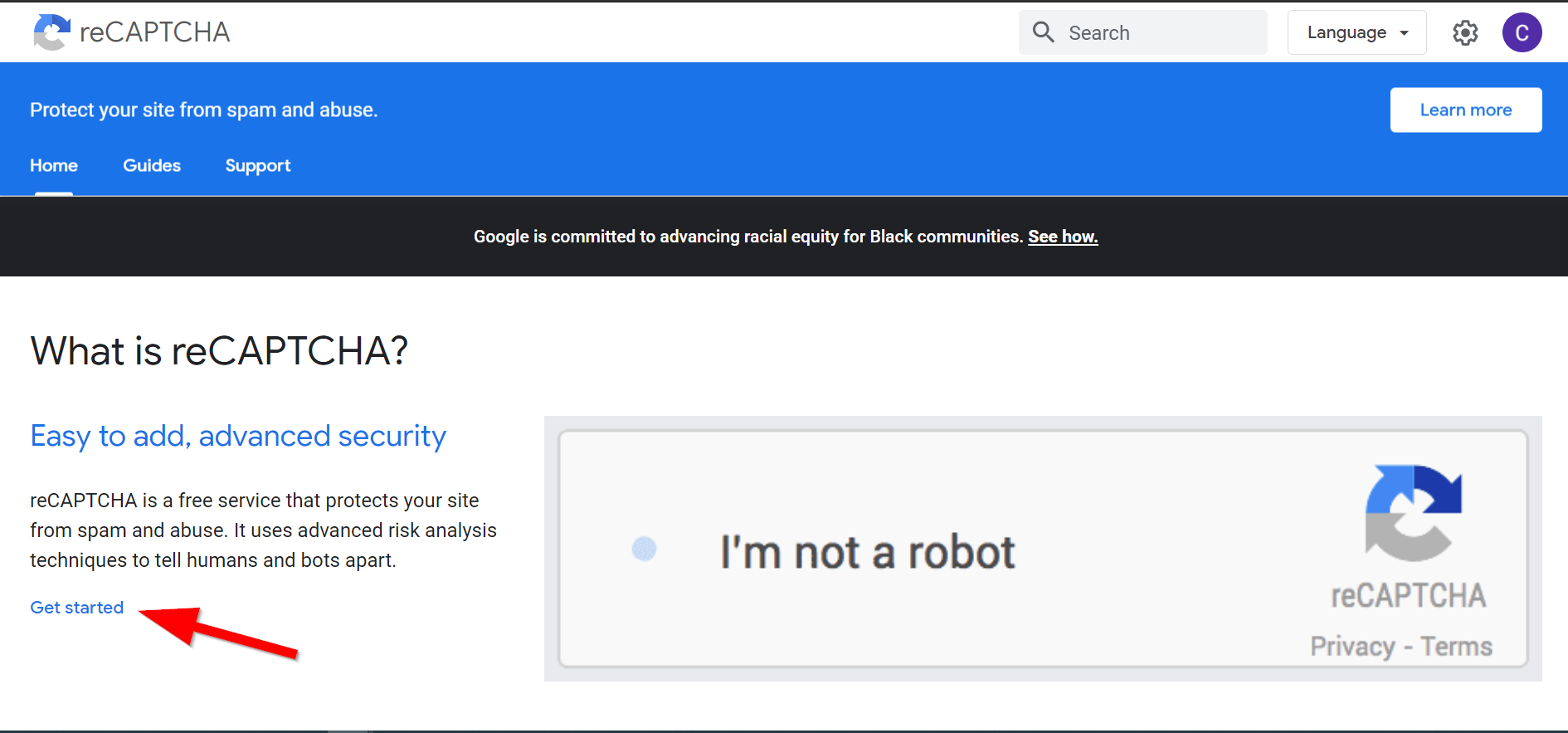
2.1. Click on Get Started.
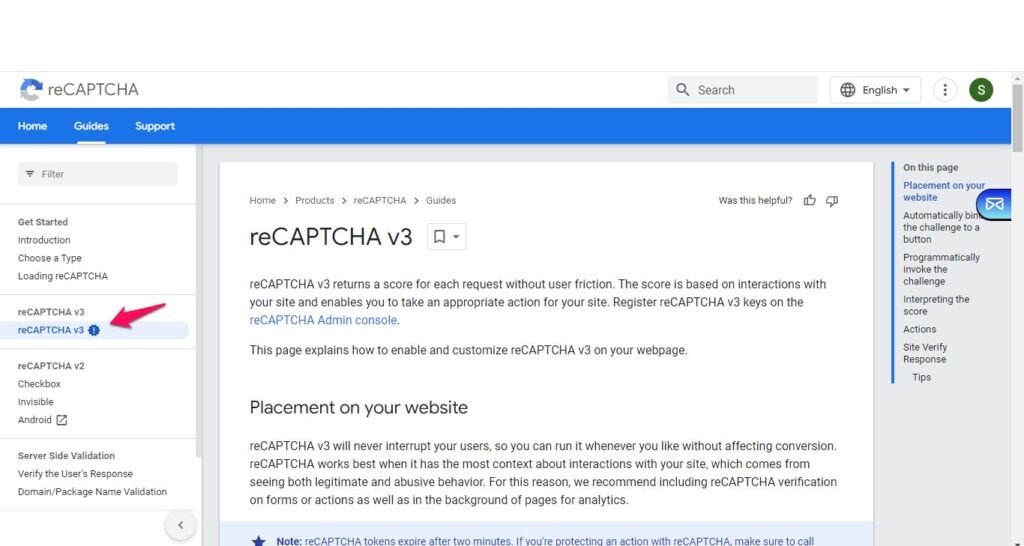
2.2. In the Developers Guide click on Re-CAPTCHA v3.
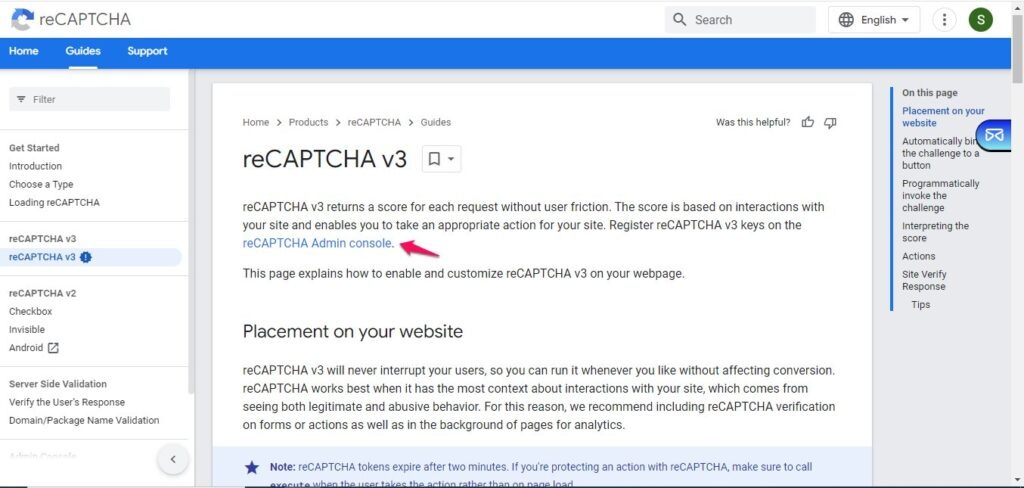
2.3. Register Re-CAPTCHA keys.
Then follow the steps: Register a new site if you are just starting to use Re-CAPTCHA. Otherwise, continue by filling in the fields of Label, Re-CAPTCHA type, Domains and Owner email addresses.
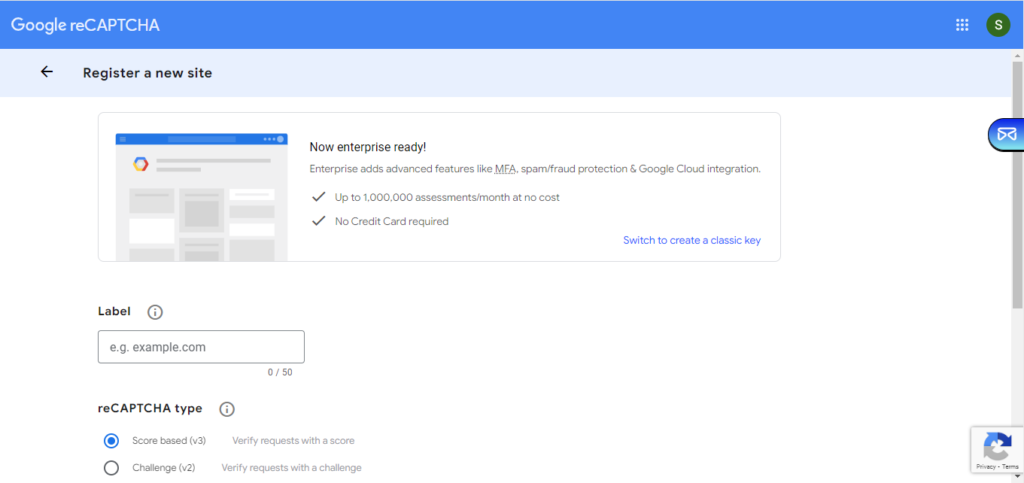
Once added, accept the Re-CAPTCHA terms and click on Submit.
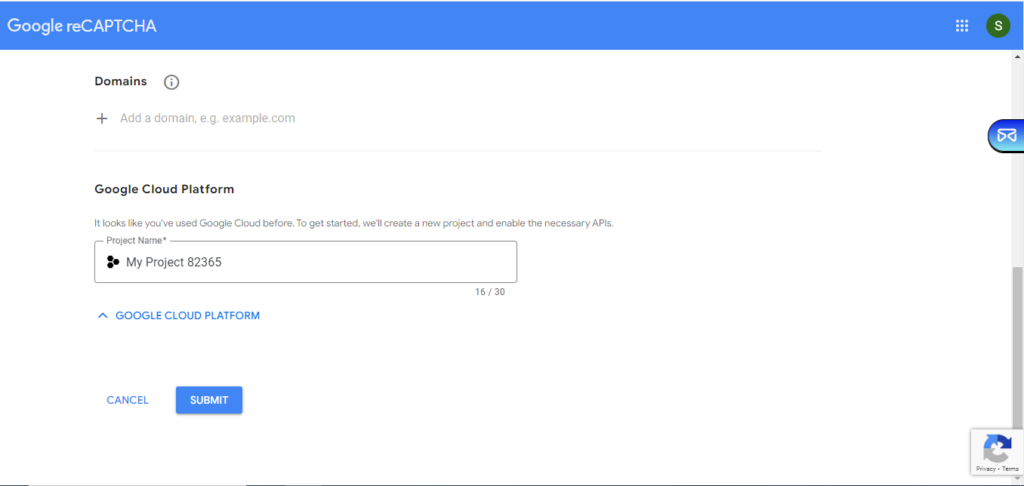
3. Copy site key and secret key
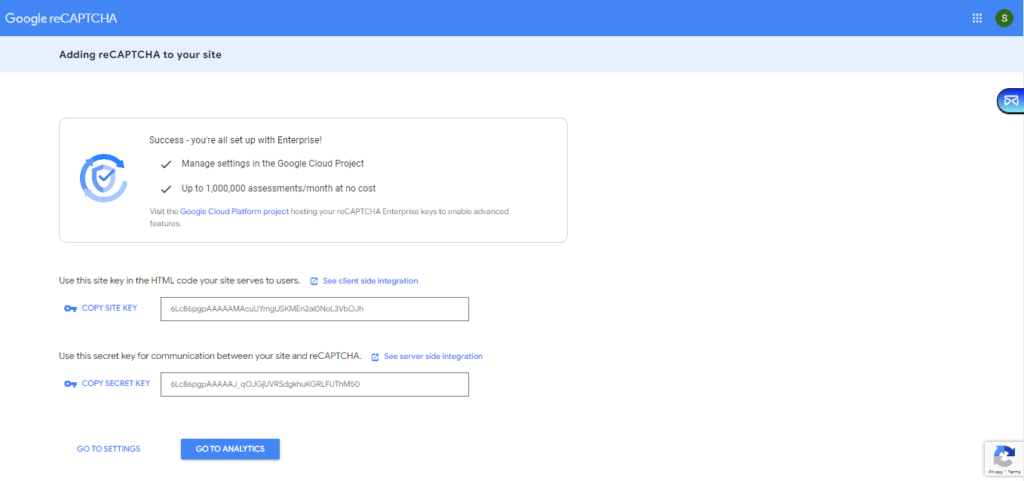
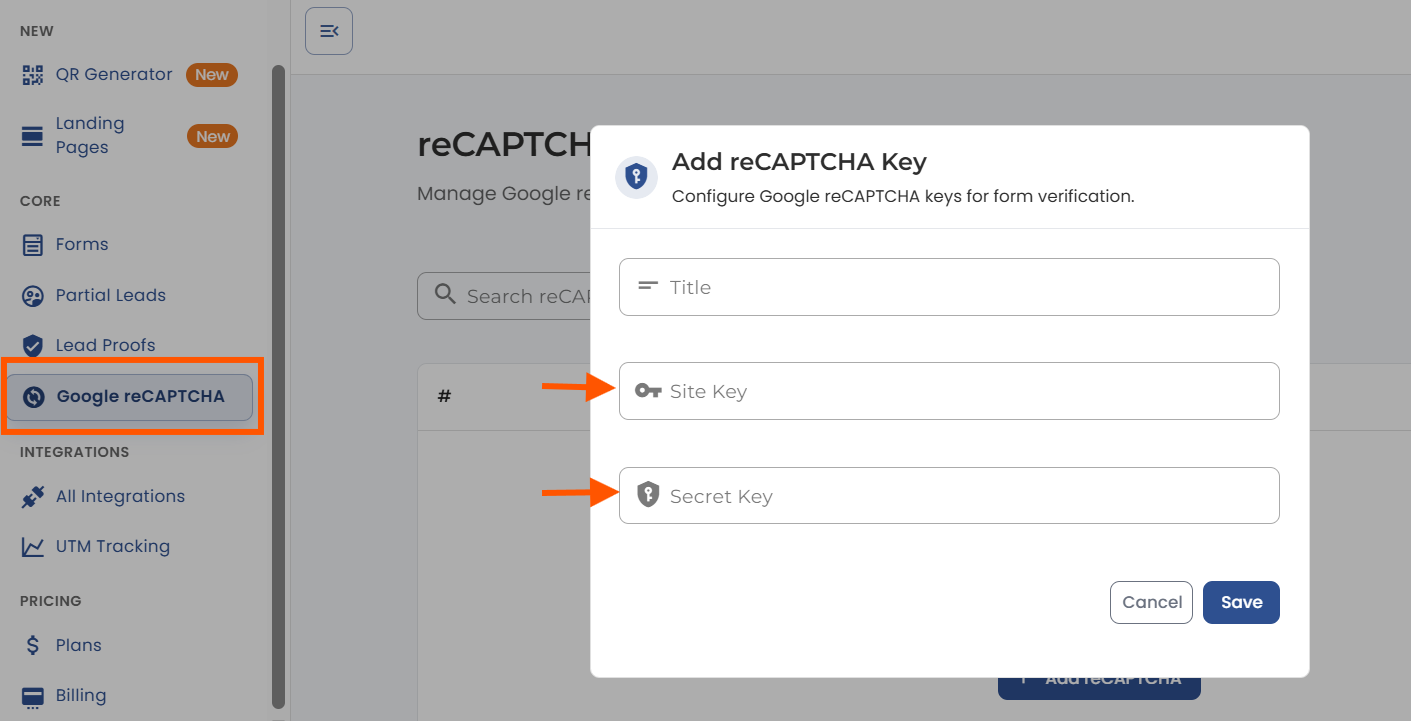
4. Go back to the Re-CAPTCHA page inside CliqForms and add site key and secret key, then save it.
5. Create a CliqForms form.
6. In the form settings of your form, set Google ReCAPTCHA to enabled.
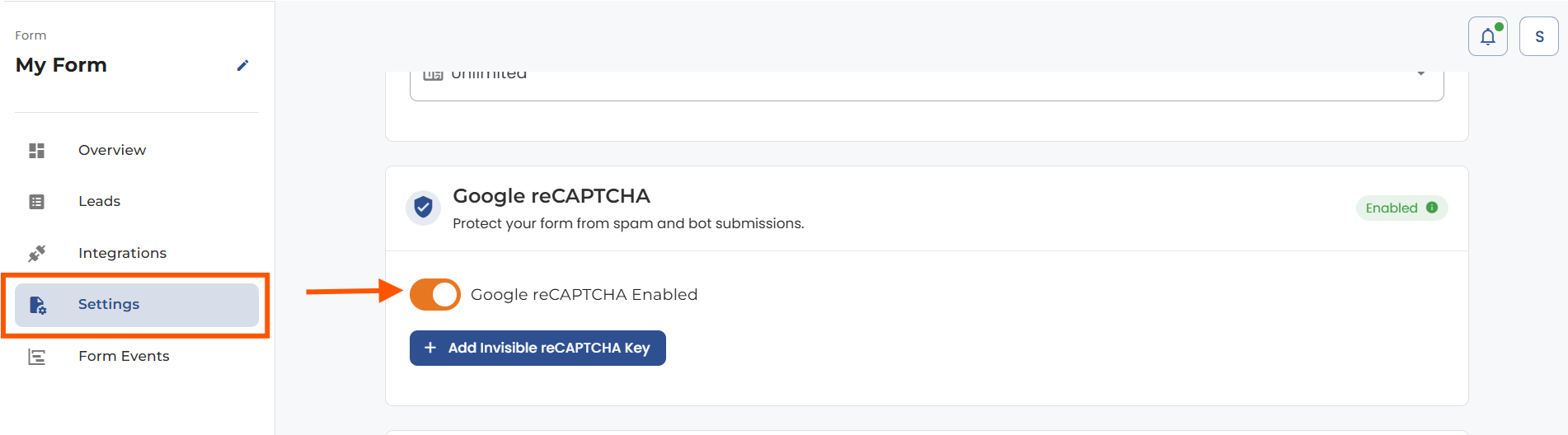
That’s it. If visitors fill in your form and click Submit, they will see the ReCAPTCHA widget appear.


.png)
