
update - collect payments in your forms with the new payment type field

Published On:
July 22, 2026
We have built CliqSign—a brand-new electronic signature app designed to make getting documents signed just as effortless as building your forms.
Upload a document, add signature fields, assign signers, and send it by email or shareable link.
CliqSign connects seamlessly with your CliqForms account — same login, no
extra setup. Access it directly from the CliqForms navigation.
Open from CliqForms
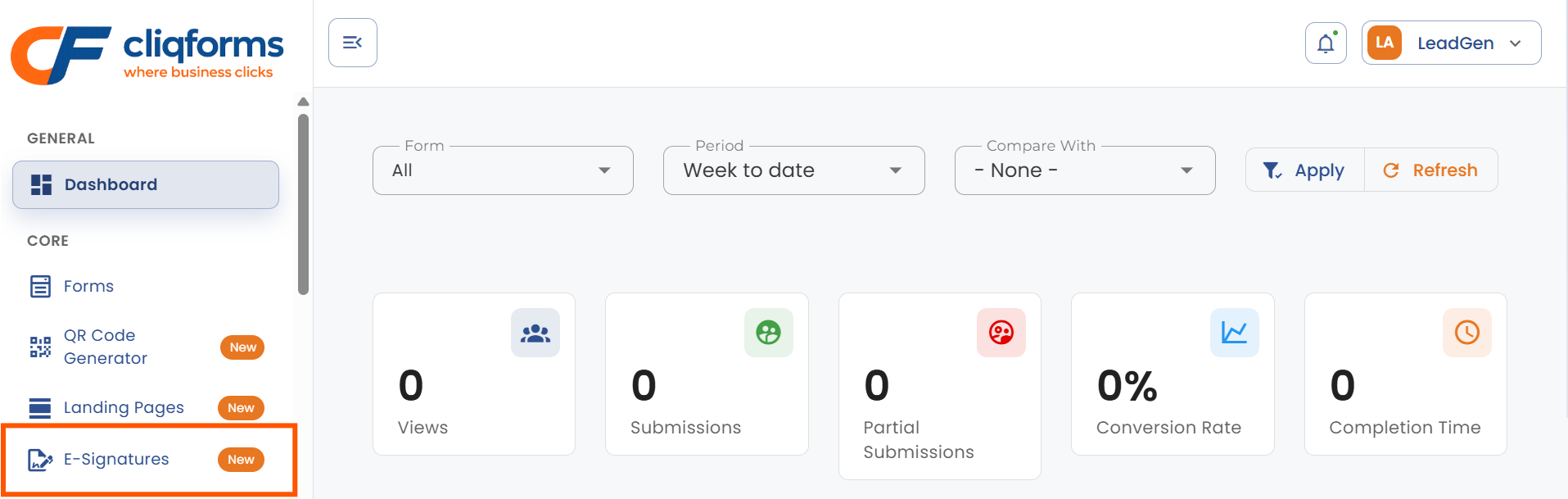
From your CliqForms account, click E-Signatures in the left sidebar navigation. You'll be taken directly into CliqSign — no separate login needed.
Dashboard
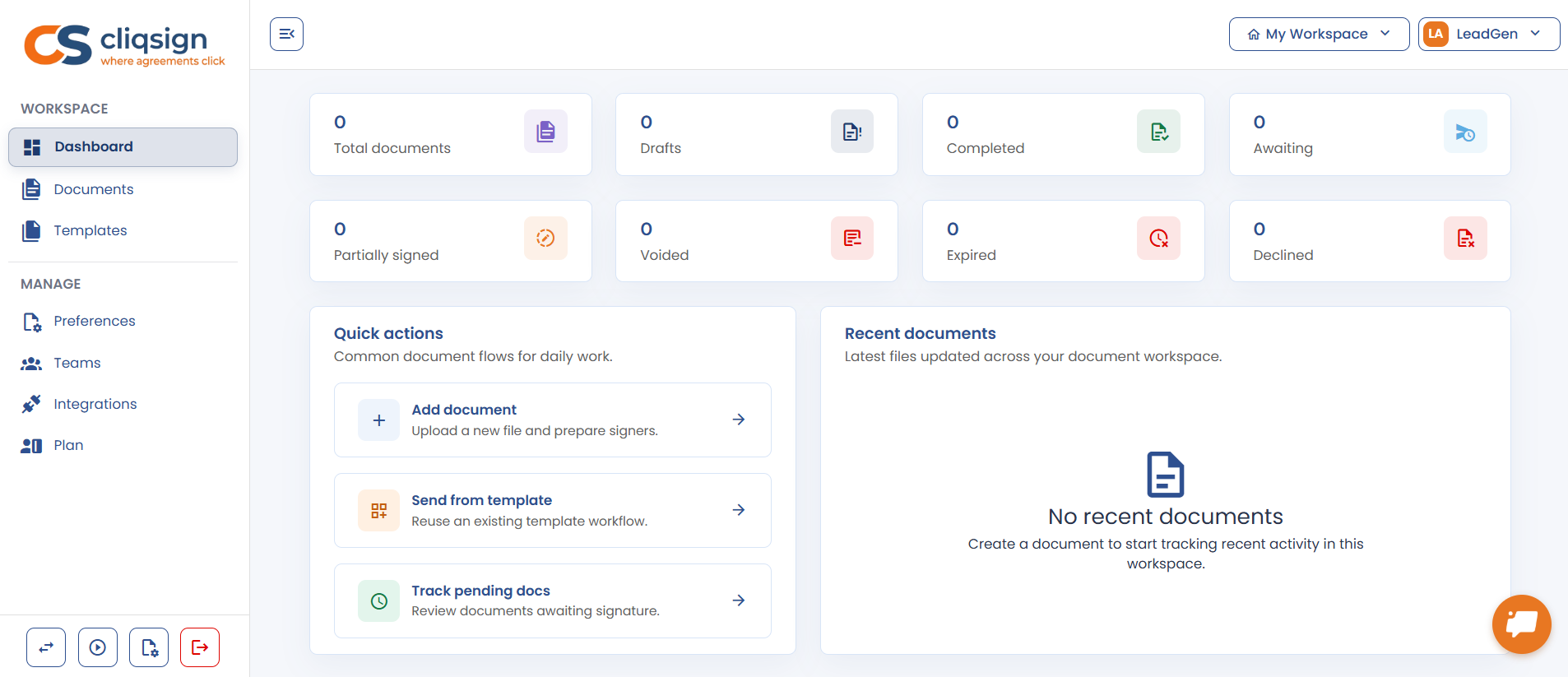
Your dashboard shows a live overview of all document activity: total documents, drafts, completed, awaiting signatures, and more. Use Quick Actions to jump into common tasks, like adding a document or tracking pending signatures. Recent documents appear at the bottom so you can pick up right where you left off.
Documents
The Documents page is your main workspace. Create a new document by uploading a PDF or using a template. Manage drafts, track sent documents, and see real-time status for every file. Filter by status, search by name, or switch between table and card views.
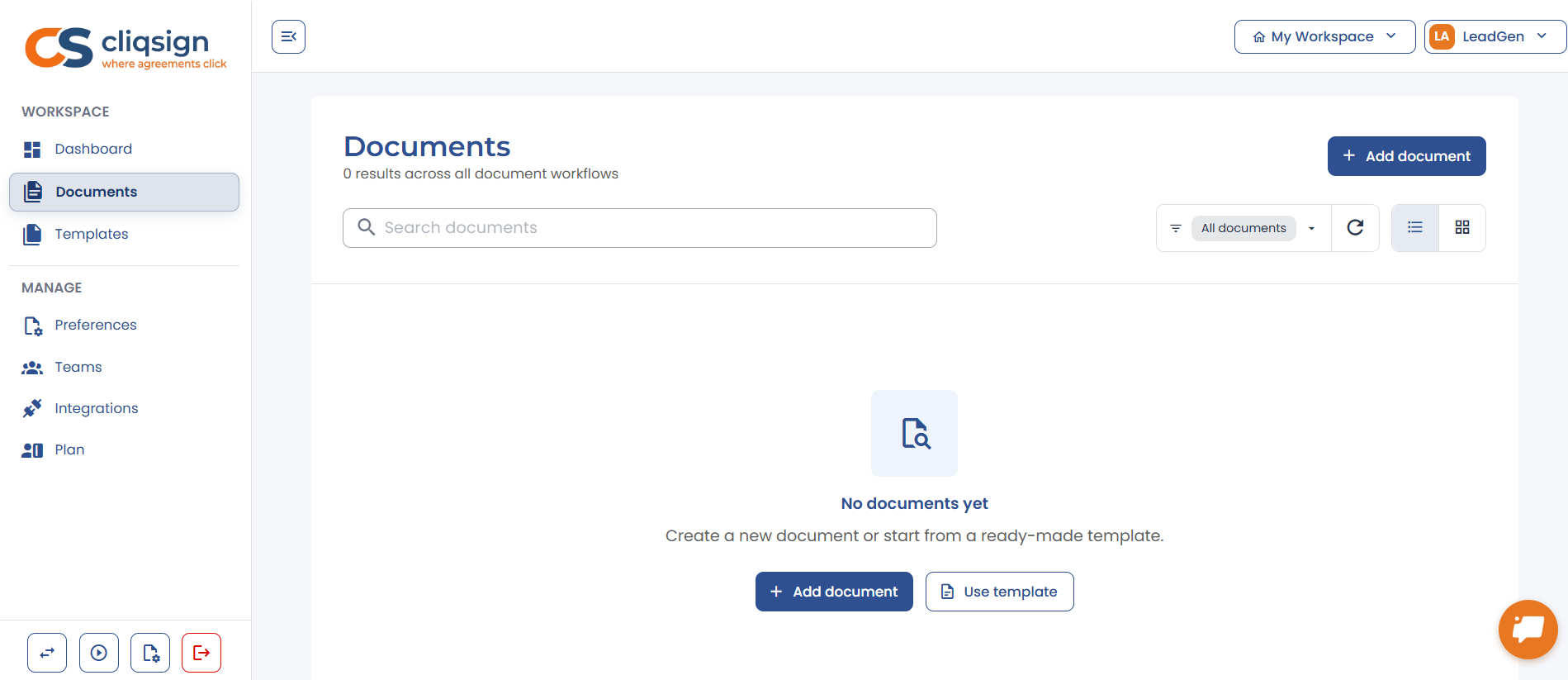
✓ Filter by status — Draft, Sent, Completed, Expired, Voided, Declined
✓ Bulk select for duplicate or delete
✓ Per-document actions — void, expire, extend, resend, download, audit trail ✓ Signer progress shown with avatars and progress bars
Document Builder
After uploading a PDF, the builder opens with your document in the center canvas. Add signers on the right, then drag and drop fields (signature, initials, date, text, and checkbox) onto the pages. Assign each field to a signer. Use auto-detect to let CliqSign find common field locations automatically.

✓ Drag-and-drop field placement on any page
✓ Smart auto-detect for signature and date fields
✓ Set each field as required or optional
✓ Page thumbnails for quick navigation
✓ Undo/redo and zoom controls
✓ Assign fields to specific signers with color coding
Review & Send
Before sending, review all signers, fields, and delivery settings. Choose between email delivery (each signer gets a personal link) or shareable links (you copy and distribute the link yourself). Configure signing order, reminders, and expiry and customize the email message.
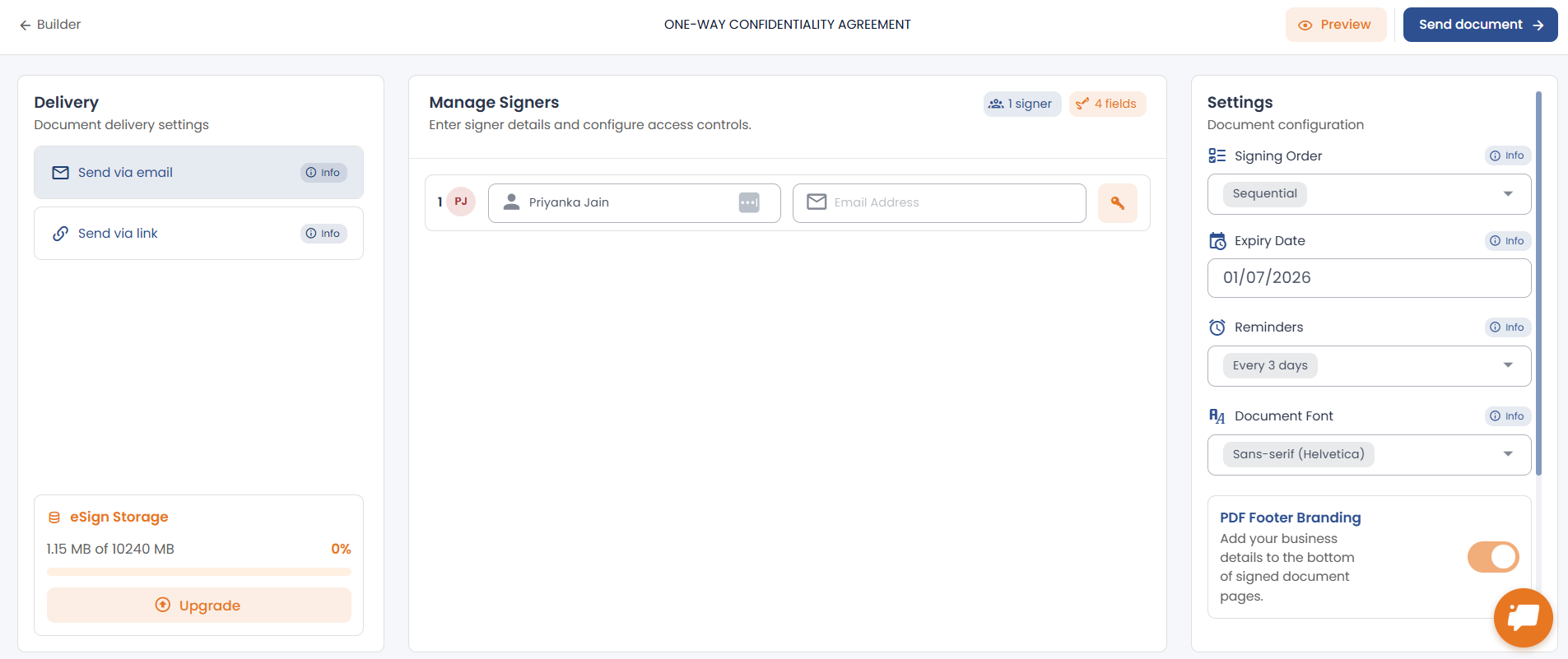
Email delivery Shareable links Signing order Reminders Expiry dates Custom email

How Signing Works
Signers receive a secure link (via email or shared directly). They open it in any browser — no account or download required. The document loads with clear field markers showing exactly where to sign, initial, or enter text. Fields are completed one at a time in guided order.
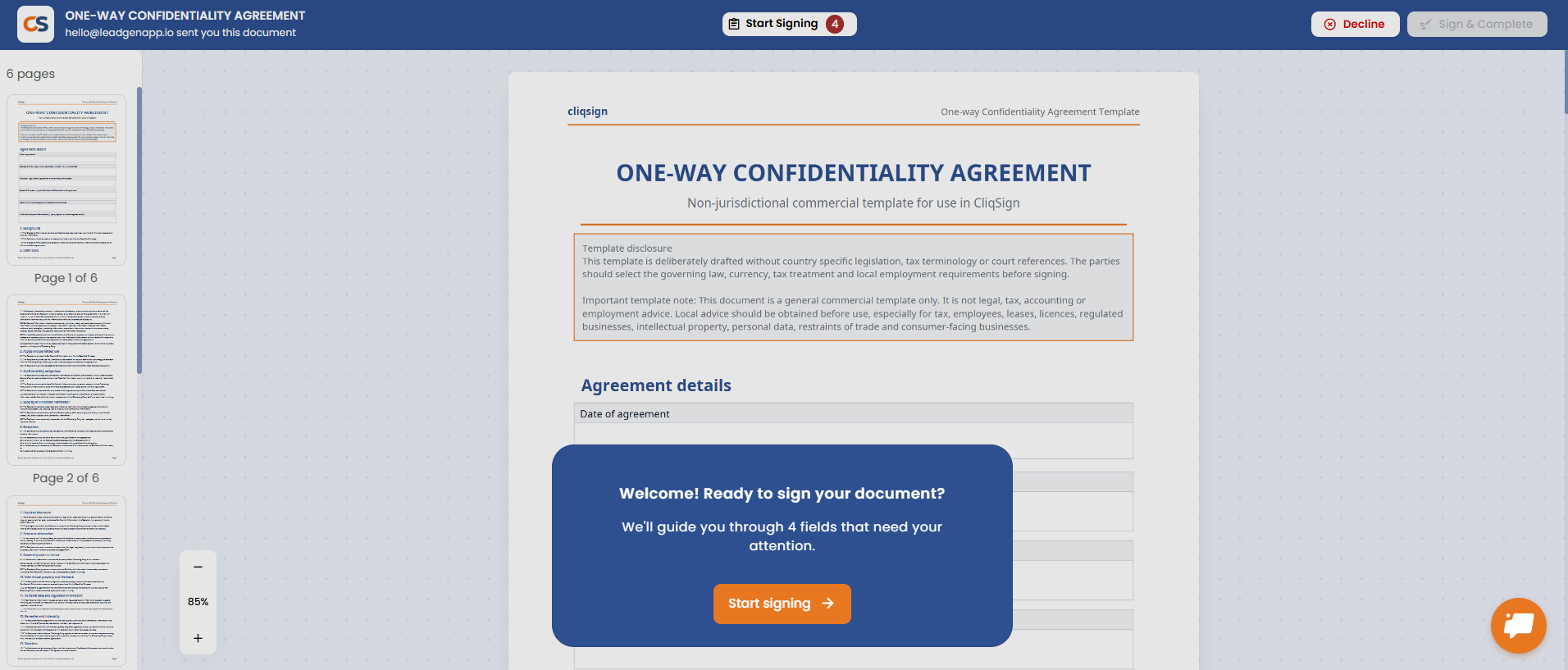
✍️ Signing flow
Open link → Review document → Complete each field (signature, date, text) → Click Sign & Complete. Done.
No account needed Works on any device Fields highlighted Guided step-by-step Decline option
Templates
Save time with reusable templates. Browse platform templates or upload your own. When you create a document from a template, the PDF is copied — you then add fields, assign signers, and send. Fields are only carried over when you duplicate an existing draft.
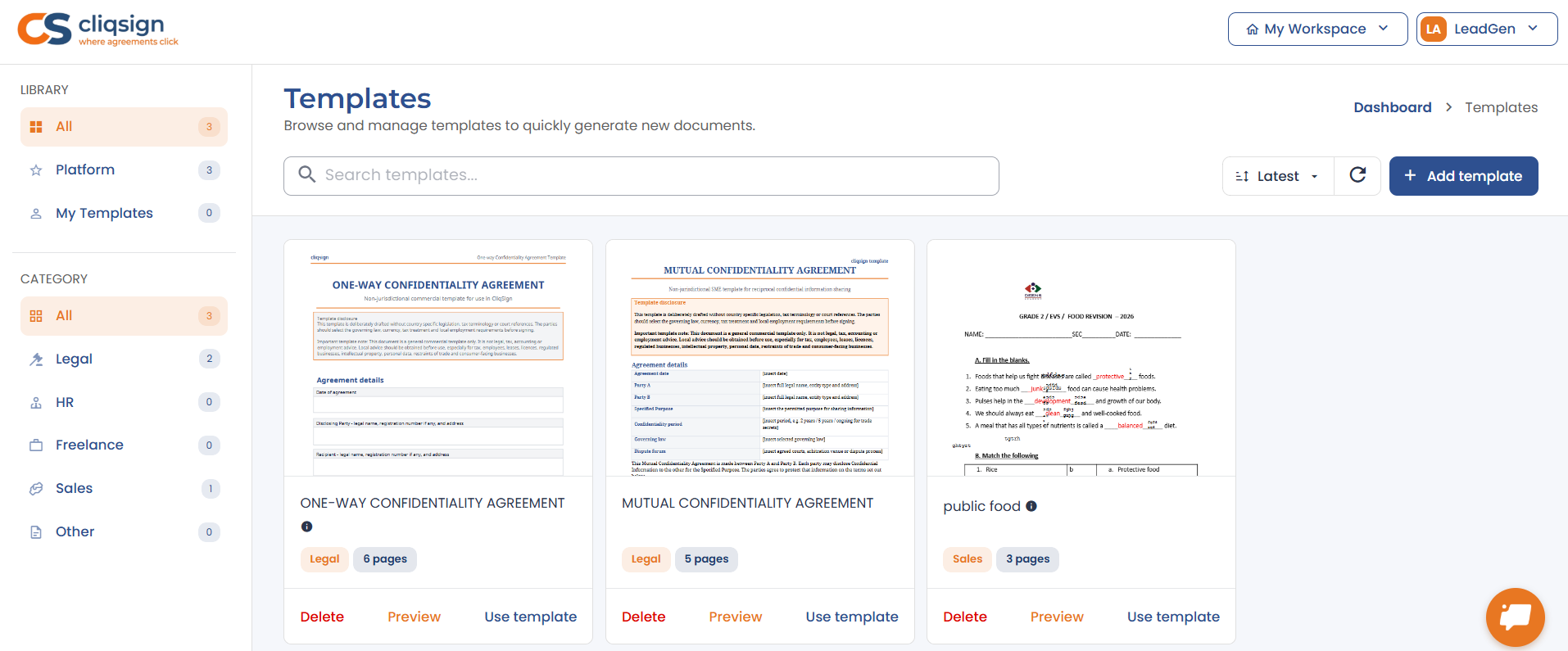
✓ Platform templates and custom "My Templates"
✓ Search and filter by category
✓ Preview before using
✓ One-click "Use template" — then assign signers and send
Settings
Manage your account preferences, branding, and subscription from the Settings page.
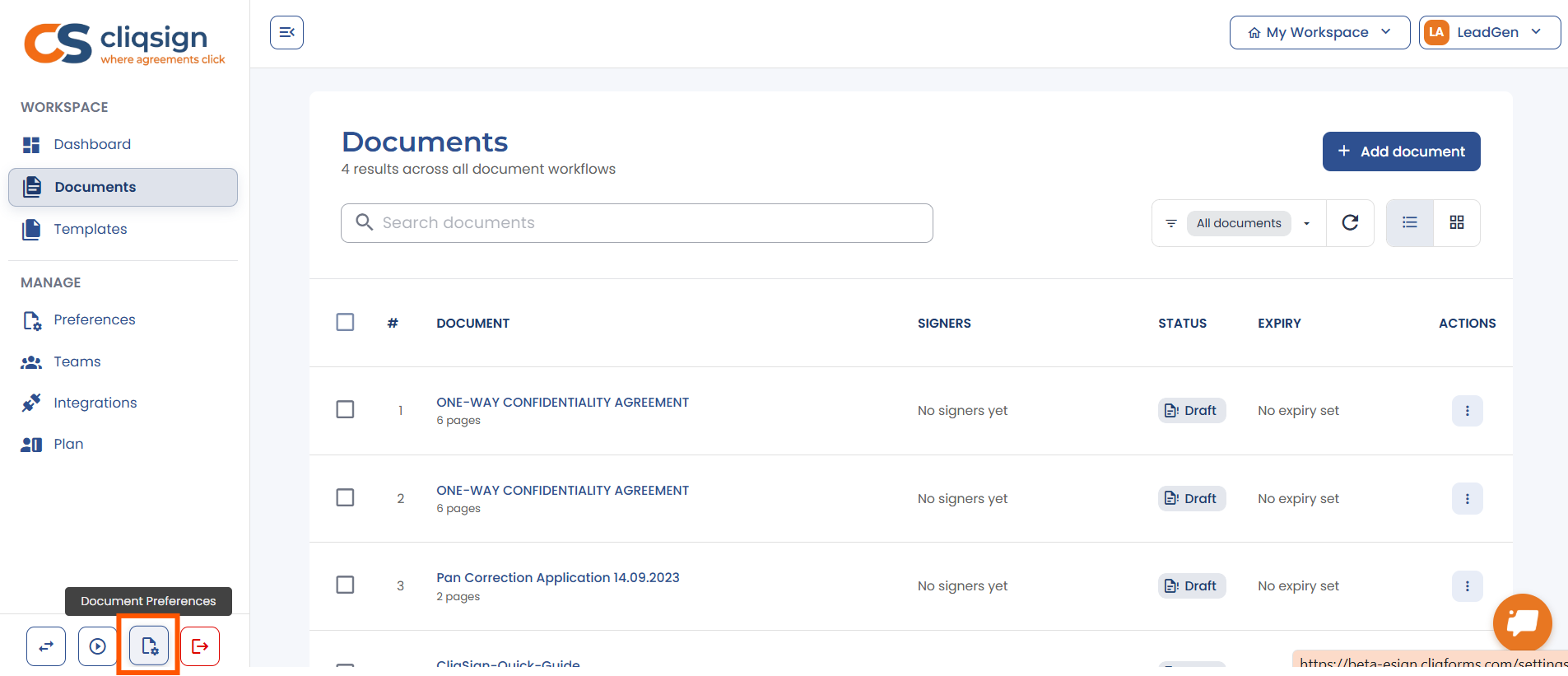
Document Preferences
Set your signing defaults — font, signature style, and default settings that apply to all new documents. Your profile details (name, email) are synced from CliqForms.
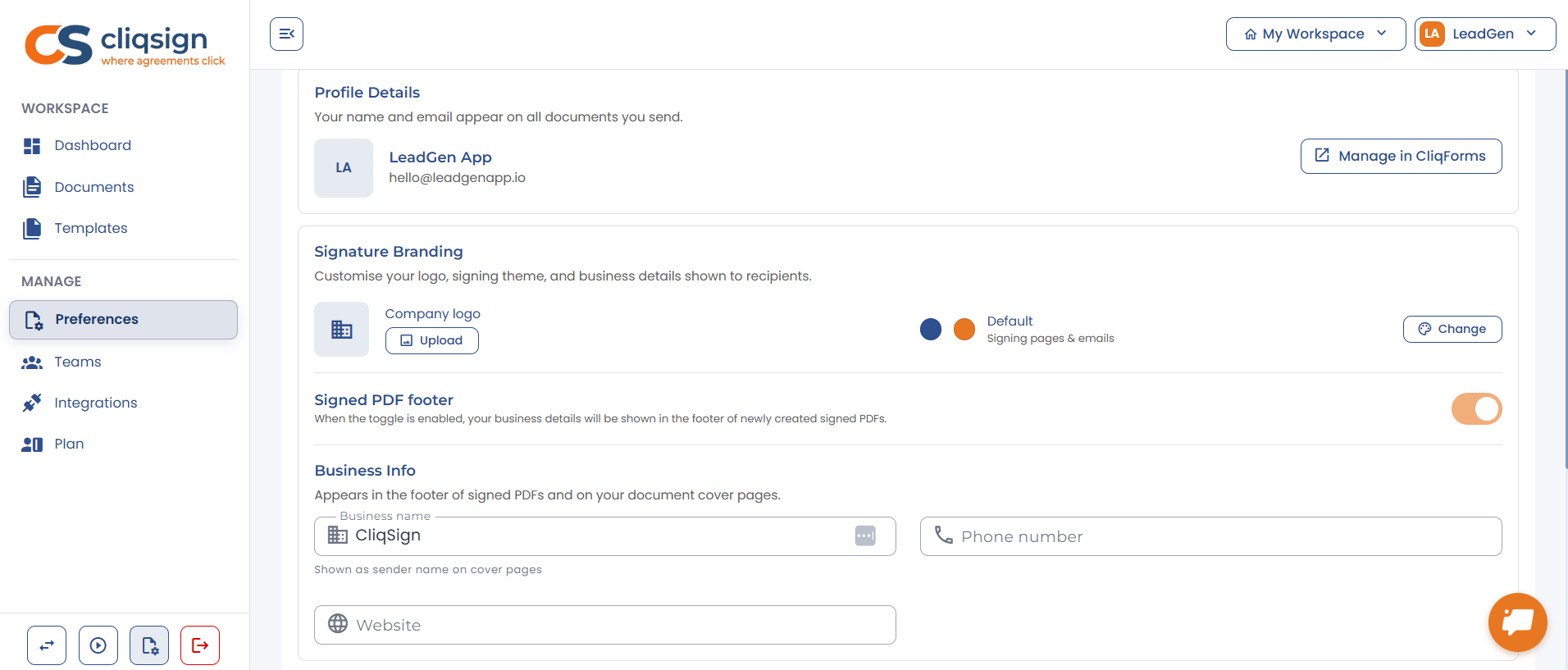
Branding
Available on supported plans. Upload your company logo, choose a signing page color theme, and add business details. Your branding always appears in emails and the audit certificate. Toggle Signed PDF footer on or off to control whether your business info appears in the footer of completed PDF pages.
Plan
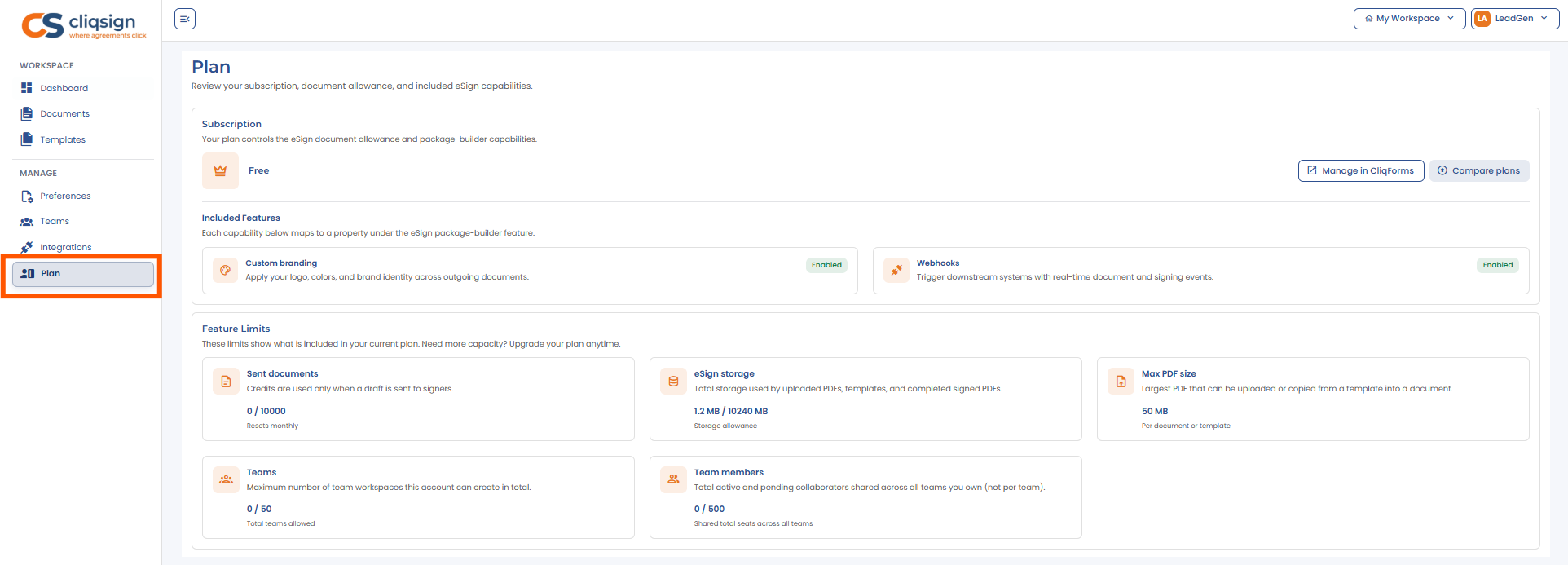
Review your subscription, document allowance, and enabled capabilities (branding, templates, webhooks, etc.). Plan management happens in CliqForms — click through to upgrade or compare plans.
Integrations & Webhooks
Connect CliqSign to your existing tools. Configure webhooks to receive real-time event notifications (document sent, signed, completed, or voided) on your own endpoint, perfect for triggering workflows in your CRM, project management, or custom systems.
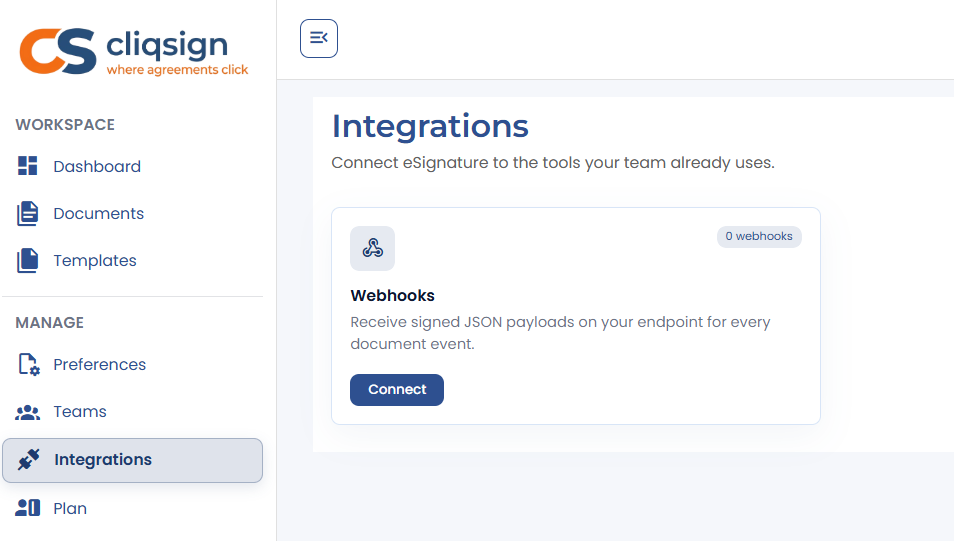
✓ Webhooks — real-time HTTP POST on document events
✓ Configure endpoint URL and select event types
✓ View delivery history and retry failed payloads
In-App Tours
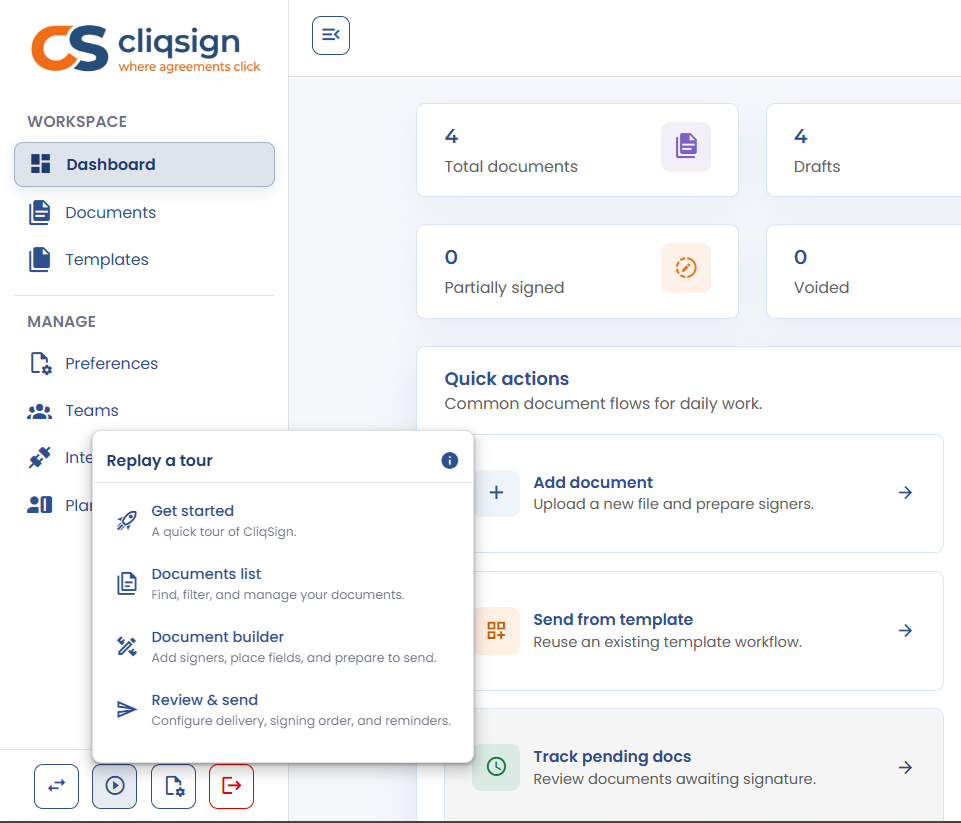
Need a refresher? Click the tour icon at the bottom of the left sidebar. It opens a menu with guided walkthroughs for every section, available on any page, any time.


.png)
